How can we help you?
Everything you need to know about installing, using, and getting the most out of Y-Axis.
Frequently Asked Questions
How do I install Y-Axis?
Click the 'Add to Chrome' button on our homepage. This will take you to the Chrome Web Store where you can install the extension with one click. Y-Axis also works with other Chromium-based browsers like Edge, Brave, and Opera.
Which AI platforms are supported?
Y-Axis currently supports ChatGPT, Claude, Google Gemini and NotebookLm. We're actively working on adding support for more platforms. The sidebar automatically activates when you visit any of these supported sites.
How do I open the sidebar?
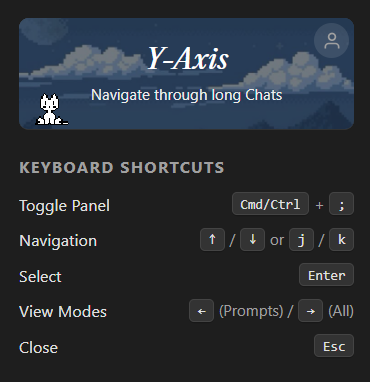
The Y-Axis sidebar appears automatically on the right side of supported AI chat interfaces. You can toggle its visibility using the keyboard shortcut (Ctrl/Cmd + Shift + Y) or by clicking the Y-Axis icon in your browser toolbar.
Is my data private?
Absolutely. Y-Axis runs entirely in your browser and does not send any of your conversation data to external servers. All processing happens locally, and we don't collect or store any of your chat content. To know who our users are we only ask your email.
Quick Start Guide
Install the Extension
Visit the Chrome Web Store and click "Add to Chrome" to install Y-Axis.
Open an AI Chat
Navigate to ChatGPT, Claude Gemini or NotebookLM. The Y-Axis sidebar will appear automatically.
Navigate Your Conversation
Click on any heading in the sidebar to instantly jump to that part of your chat.